Showing posts with label 1000HA. Show all posts

Dec 11, 2008

1000X eee PC Owner's Guide to the Galaxy

As a new owner of the 1000X, here are the guides I went through to update and modify my laptop. It should save time for new owners of the 1000H or 1000HA looking to do the same.

Stop that annoying clicking Hard Drive sound by jko:
http://forum.eeeuser.com/viewtopic.php?id=46222

Free Microsoft Windows 2008 Server Edition for College Students by uptempo:
http://forum.eeeuser.com/viewtopic.php?id=46761

Vista or Windows 2008 install guide by CarlosNR:
http://forum.eeeuser.com/viewtopic.php?id=51025

Updated Windows XP and Vista drivers for the 1000H/1000HA by LaiWongBao:
http://forum.eeeuser.com/viewtopic.php?id=37175

1000HA Wireless Vista Drivers by tqnguyen:
http://forum.eeeuser.com/viewtopic.php?id=53871

Cooler running eee PC 1000X by lasertech:
http://forum.eeeuser.com/viewtopic.php?pid=382274

Overclock your 1000X modified eeectl by CarlosNR:
http://forum.eeeuser.com/viewtopic.php?id=54015

More responsive keyboard mod by coninsan:
http://forum.eeeuser.com/viewtopic.php?id=39113

Fix a noisy fan by danristei:
http://forum.eeeuser.com/viewtopic.php?id=42655

Restore a 1000H without a DVD drive by spider:
http://wiki.eeeuser.com/restore_1000h

Happy computing

.

Dec 8, 2008

Windows Server Standard 2008 Tweaks

After installing a fresh Windows 2008 Server Standard edition, I enabled and disabled the following to tweak my installation. 

_________________________________________

Convert Windows 2008 to a Workstation

http://www.win2008workstation.com/wordpress/
Download the automated Server to Workstation converter made by Sawo: http://converter.win2008workstation.com/

My Settings

General:
Enable Windows Audio
Optimize CPU Performance for Programs
Disable IE Enhanced Security Configuration
Enable Superfetch

Visual Tweaks
Disable Shutdown Event Tracker
Disable Verbose Messages at Startup/Shutdown
In addition to enabling themes, if you want to have your desktop look like the ones you've seen on Vista, you need to enable Desktop Experience:

Go to Server Manager
Add feature
Check on Desktop Experience

Network
Enable Wireless Networking

_________________________________________

Disable automatic driver updates:

Start menu, right click My Computer, Poperties
Click on Advanced System Settings
Click on Hardware Tab
Then Windows Update Driver Settings
Select Never check for drivers when I connect a device
Click Ok

_________________________________________

Turn off Indexing Services:

Right click on drive C: and then properties
Click off Index this drive for faster file searching
Apply to all files and subfolders
Click Ignore all if a message pops up
Once Windows is done, close

_________________________________________

Disabling Services (these are settings that worked for me, if you use a VPN, Windows firewall, adjust accordingly):

Go to your start menu and search
Type Services
Expand the  Services icon

Disable:

Application Experience 
Diagnostic Policy Service
Distributed Link Tracking Client
KtmRm for Distributed Transaction Coordinator
IP Helper
IPsec Policy Agent
Remote Access Connections Manager (VPN usage)
Secure Socket Tunneling Protocol Service
Shell Hardware Detection
Terminal Services
Windows Error Reporting Services
Windows Firewall
Windows Time


.

Dec 6, 2008

1000HA AR5007EG Wireless Vista Drivers

It was a challenge searching and installing wireless drivers for the 1000HA, so I figured I'd try and make the process easier for those who attempt a Vista install. Hope this helps.

From:
http://www.xpvistaworld.com/atheros_ar5 … r_1131.htm

Direct Link:
http://download.boulder.ibm.com/ibmdl/p … cna5ww.exe

Instructions:
1. Download and open, the files will unpack to a folder you specify
2. Go to Device Manager
3. Right click on Update Driver Software
4. Click Browse my computer for driver software
5. Point to the folder you specified in step 1, and click Next
6. The drivers will install, and you should be on your way to browsing

.

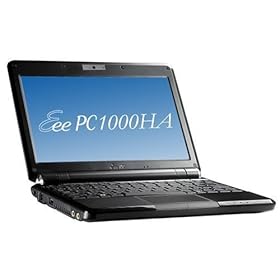
Initial Impressions of the Asus eee PC 1000HA


For potential buyers reading this, my initial impressions are from a person who was having buyer's remorse upgrading from an eee PC 701 to the 1000HA.

Concerns:
Weight and size of a larger 10" laptop when compared to the 701.

After receiving it today, I can finally put those concerns to rest. The 1000HA feels super light. I cannot notice the weight difference at all. Yes, if I picked up a 701 and then picked up the 1000HA, then I'd notice some differences, but during my average usage, the 1000HA feels light.

Pros:
The 10" screen is a godsend especially after using the 701 for so long. I will definitely explore some hobbies utilizing this larger screen i.e. web design, photography, and blogging.

I do enjoy the faster processor as well as the ease of upgrading the RAM.

I believe the biggest PRO would the support of the eeePC user forum. With such a large support base, eee PC users are able to do a lot more with their laptops.

The mouse and keyboard feel great to me. The mouse buttons are not stiff at all, and the keyboard feels like a full size keyboard. I use the left shift button, so no worries on the placement of the right shift key.

Cons:
Honestly, I was really looking forward to the multitouch pad, but after using it, the pad seems "laggy" and a little slow to respond for my taste. Don't get me wrong, the multitouch idea itself is awesome, but the slow response really kills it--my mouse movements are all over the place! Maybe I just need more practice.

Conclusion:
I am enjoying the 1000HA as we speak. Love the screen, faster CPU, weight, and full sized keyboard. No buyer's remorse. Lastly, to get some creativity juices going, I will be putting Windows 2008 server on this and vistafying it. Photoshop, dreamweaver, Vmware, Windows XP, and maybe a flavor of Ubuntu. Also, I'm looking forward to the release of the gOS Cloud OS.

.